Installing Zoom Client & Login (ChromeOS)
- Christopher Mueller
Owned by Christopher Mueller
Last updated: Apr 20, 2020
This article will help you install Zoom and log into the PCCC Zoom System
Zoom and Virtual Desktops
PCCC does NOT recommend using Zoom Videoconferencing inside a Virtual Desktop. Zoom should be run from your laptop, home desktop, tablet or smart phone.
Table of Contents
Installation
The zoom application on Chrome OS can be downloaded from the Chrome Web Store.
Logging In with your PCCC Credentials
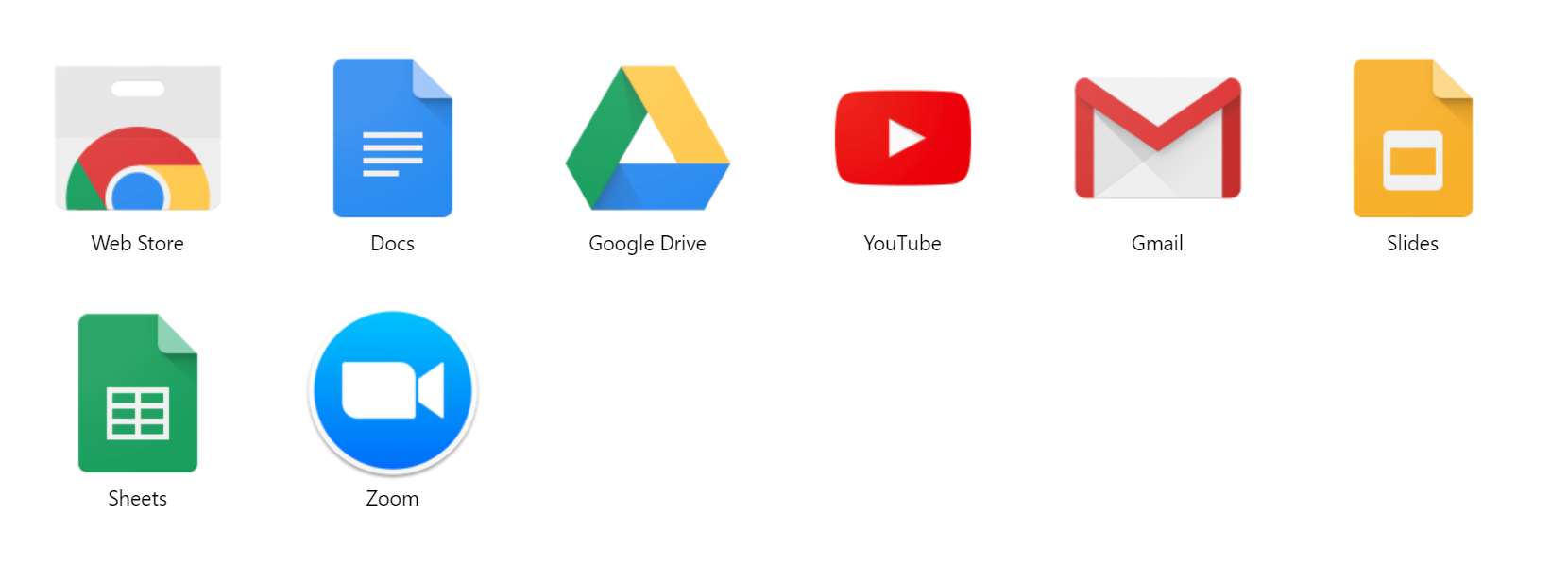
- In the Apps menu click Zoom
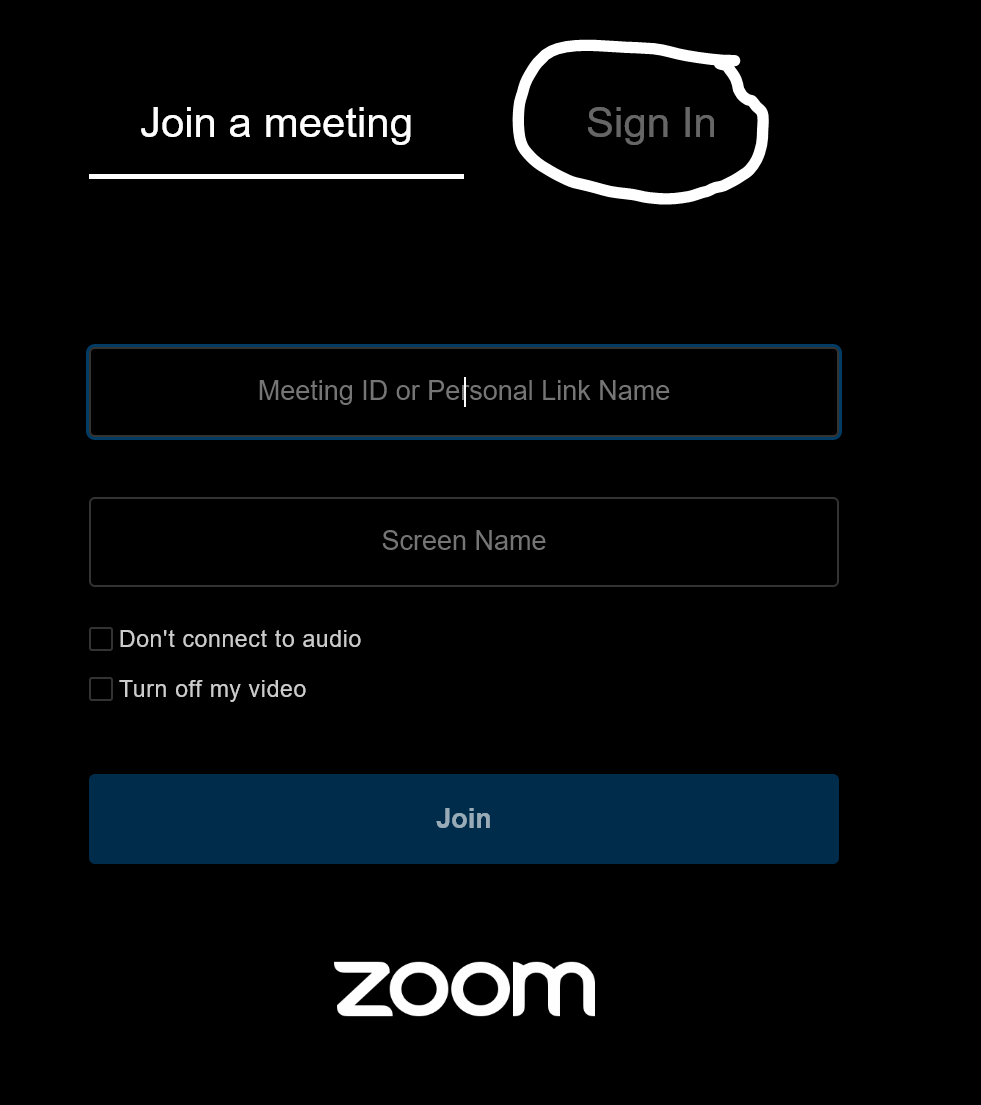
- Click "Sign In"
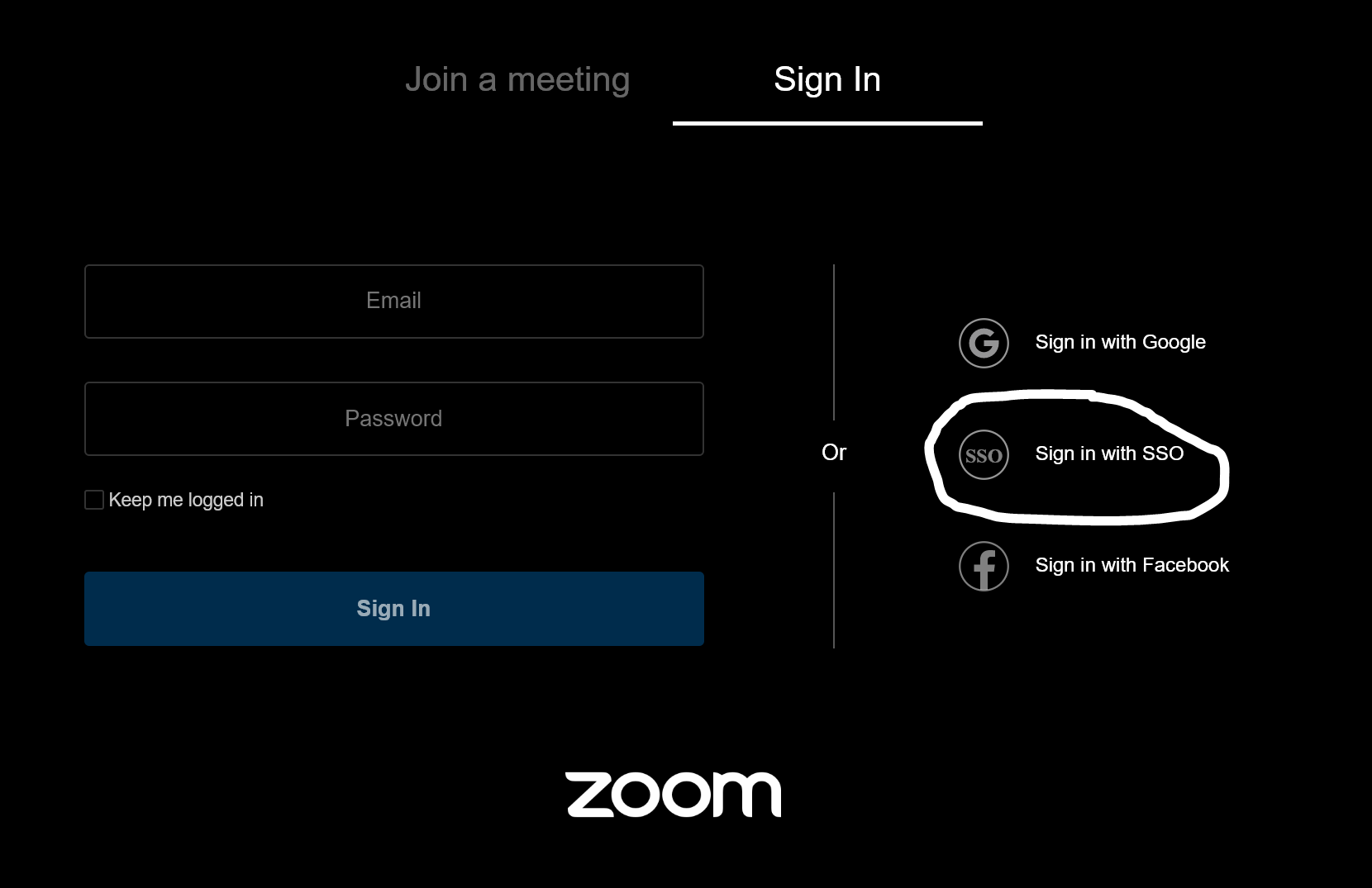
- Select "Sign in with SSO"
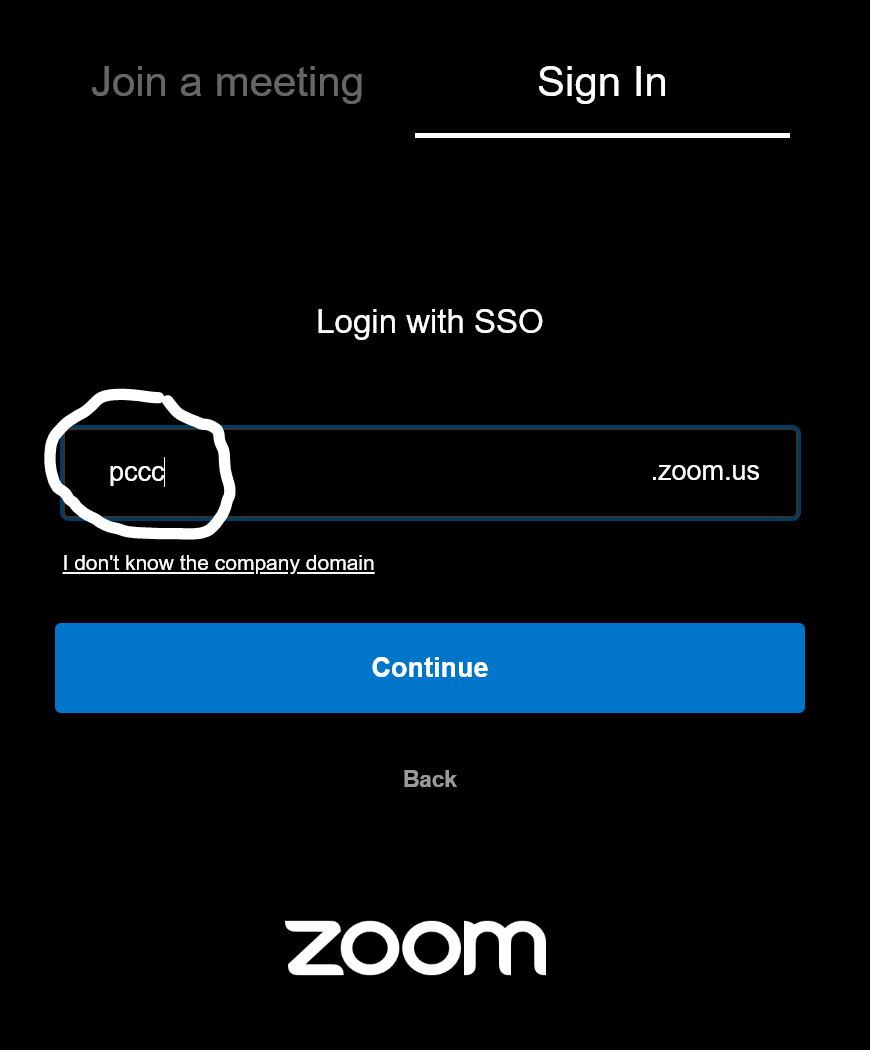
- Type "pccc" in company domain and click "continue"
- Sign in with your PCCC UserID and Password
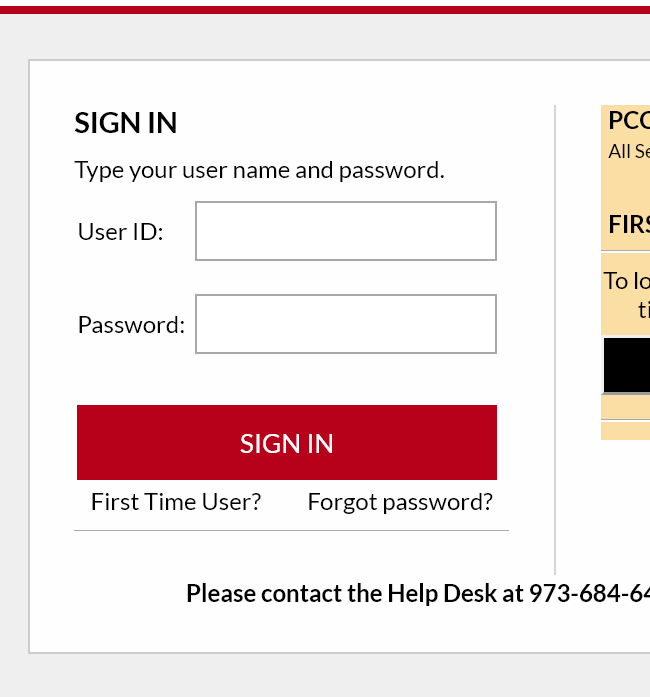
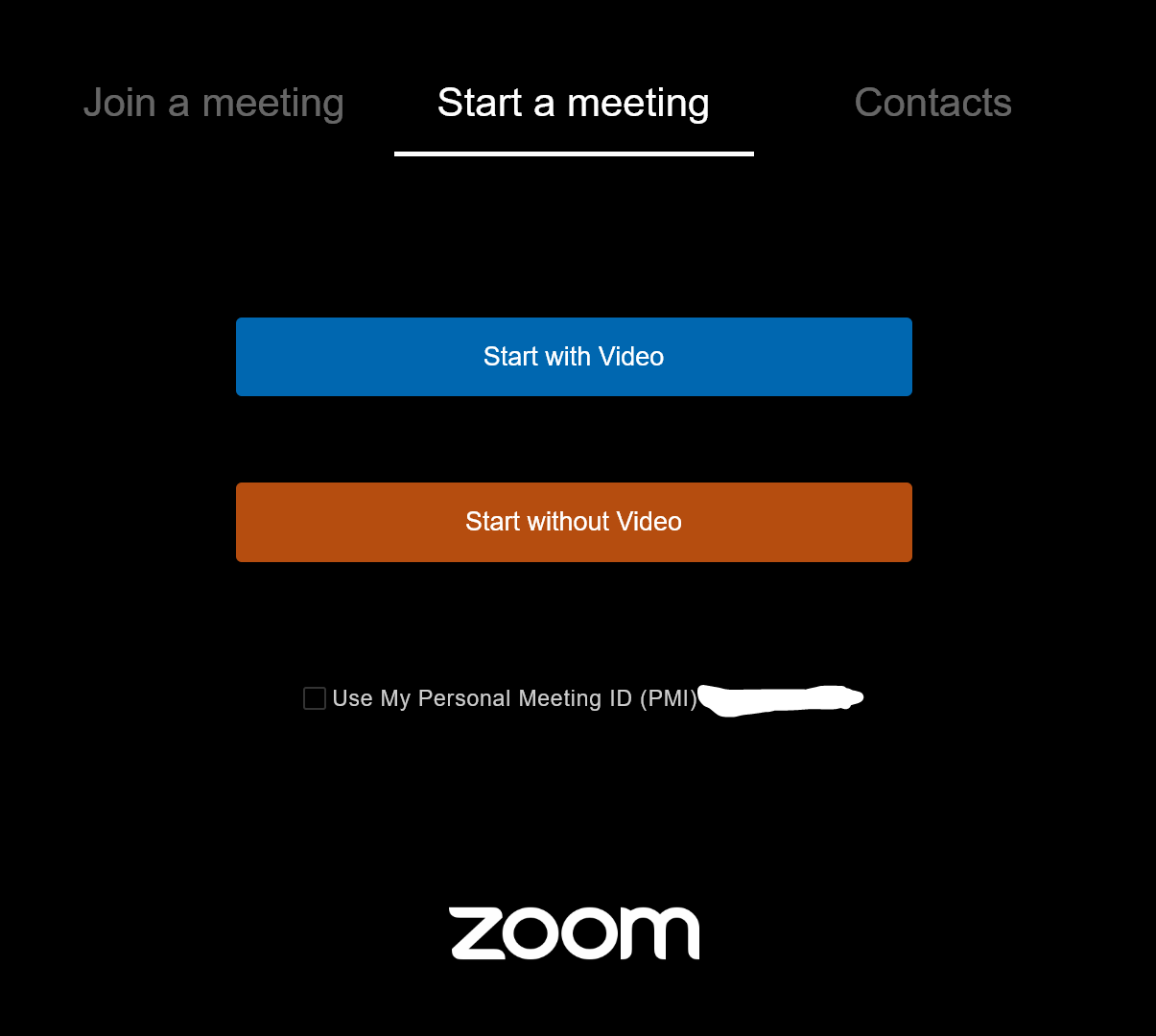
- You are now signed into PCCC Zoom
Related articles
, multiple selections available, Use left or right arrow keys to navigate selected items