Installing Zoom Client & Login (Linux)
- Christopher Mueller
Follow these instructions to install Zoom on Linux distros like Debian, Ubuntu, Linux Mint, and Arch. You can also use these instructions to update an existing Zoom installation on Linux.
Note: If you are a new or inexperienced Linux user, follow sections to use the graphical installer.
Zoom and Virtual Desktops
PCCC does NOT recommend using Zoom Videoconferencing inside a Virtual Desktop. Zoom should be run from your laptop, home desktop, tablet or smart phone.
Table of Contents
Installation
Debian, Ubuntu, or Linux Mint
Note: These steps also apply to most other Ubuntu-based distros like Kubuntu and Elementary.
Using a graphical installer
This method is recommended for those who are new to Linux or prefer a graphical installer.
- Open the terminal, type in the following command and press Enter to install GDebi.
sudo apt install gdebiNote:- GDebi is usually installed by default on most Ubuntu-based distros.
- If you're using Debian and get an error saying you are "not in the sudoers file", run the following commands to install sudo, then try installing GDebi again.
su -
apt install sudo
- Enter your admin password and continue the installation when prompted.
- Download the DEB installer file from our Download Center.
- Double-click the installer file to open it using GDebi.
- Click Install.
- Enter your admin password and continue the installation when prompted.
Using the terminal
- Download the DEB installer file from our Download Center
- Open the download location using a file manager.
- Right click in the file manager and click Terminal or Open in Terminal to open the terminal in the current location.
- Type in the following command and press Enter to run it.
sudo apt install ./zoom_amd64.deb
Note:- Make sure you enter the correct DEB filename. In most cases, the filename will be zoom_amd64.deb, but will be different if you have using a 32-bit system or a DEB file for an older version of Debian or Ubuntu.
- If you're using Debian and get an error saying you are "not in the sudoers file", run the following commands, then try installing again.
su -
apt install sudo
- Enter your admin password and continue the installation when prompted.
Dependencies
If dependencies are not installed when using the terminal or graphical installer, run this command to update the package database, then try installing Zoom again.
sudo apt update
If you have issues installing, make sure you have the following dependencies installed.
libglib2.0-0
libgstreamer-plugins-base0.10-0
libxcb-shape0
libxcb-shm0
libxcb-xfixes0
libxcb-randr0
libxcb-image0
libfontconfig1
libgl1-mesa-glx
libxi6
libsm6
libxrender1
libpulse0
libxcomposite1
libxslt1.1
libsqlite3-0
libxcb-keysyms1
libxcb-xtest0
Uninstalling Zoom
If you want to uninstall, run the following command in the terminal.
sudo apt remove zoom
openSUSE
Using a graphical installer
This method is recommended for those who are new to Linux or prefer a graphical installer.
- Download the RPM installer file at our Download Center.
- Open the download location using a file manager.
- Right click the RPM installer file, select Open With, and click Install/Remove Software.
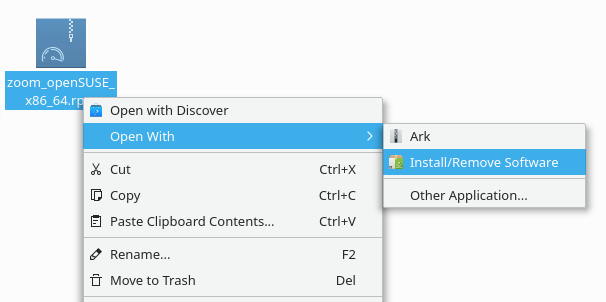
- Enter your admin password when prompted.
- Click Accept to install Zoom and the required dependencies.
Using the terminal
- Download the RPM installer file at our Download Center.
- Open the download location using a file manager.
- Right click in the file manager, navigate to Actions, and click Open Terminal Here to open the terminal in the current location.
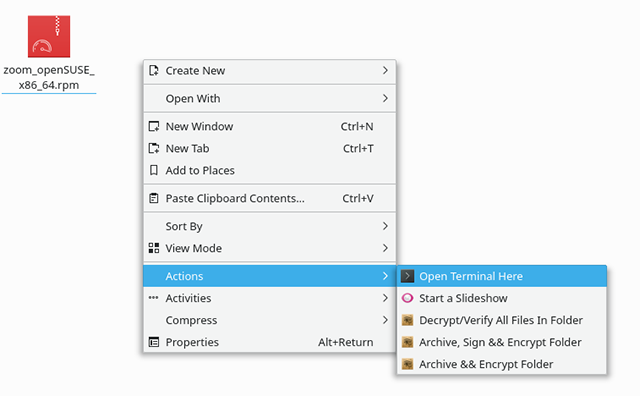
- Run the following command to install Zoom.
sudo zypper install zoom_openSUSE_x86_64.rpm
Note: Make sure you enter the correct RPM filename. If you installing on a 32-bit system, the filename is zoom_openSUSE_i686.rpm. - Enter your admin password and continue the installation when prompted.
Dependencies
If you have issues installing, make sure you have the following dependencies installed.
32-bit
ld-linux.so.2
libc.so.6
libX11.so.6
libXfixes.so.3
libglib-2.0.so.0
libGL.so.1
libsqlite3.so.0
libXrender.so.1
libXcomposite.so.1
libQt3Support.so.4
libxslt.so.1
libgstvideo-0.10.so.0
libasound.so.2
libpulse.so.0
libgthread-2.0.so.0
libxcb-shape.so.0
libxcb-shm.so.0
libxcb-randr.so.0
libxcb-image.so.0
libxcb-xtest.so.0
libxcb-keysyms.so.1
libudev.so.1
libgobject-2_0-0-32bit
libgstapp-0_10-0-32bit
libgstinterfaces-0_10-0-32bit
libXi6-32bit
libSM6-32bit
libdbus-1-3-32bit
libasound2-32bit
64-bit
ld-linux-x86-64.so.2()(64bit)
libc.so.6()(64bit)
libX11.so.6()(64bit)
libXfixes.so.3()(64bit)
libglib-2.0.so.0()(64bit)
libGL.so.1()(64bit)
libsqlite3.so.0()(64bit)
libXrender.so.1()(64bit)
libXcomposite.so.1()(64bit)
libQt3Support.so.4()(64bit)
libxslt.so.1()(64bit)
libgstvideo-0.10.so.0()(64bit)
libasound.so.2()(64bit)
libpulse.so.0()(64bit)
libgthread-2.0.so.0()(64bit)
libxcb-shape.so.0()(64bit)
libxcb-shm.so.0()(64bit)
libxcb-randr.so.0()(64bit)
libxcb-image.so.0()(64bit)
libxcb-xtest.so.0()(64bit)
libxcb-keysyms.so.1()(64bit)
libudev.so.1
libgobject-2_0-0
libgstapp-0_10-0
libgstinterfaces-0_10-0
libXi6
libSM6
libdbus-1-3
libasound2
Uninstalling Zoom
If you want to uninstall, run the following command in the terminal.
sudo zypper remove zoom
Oracle Linux, CentOS, RedHat, or Fedora
Using a graphical installer (Fedora only)
If you're using Fedora GNOME edition, you can install Zoom using the GNOME application center.
- Download the RPM installer file at our Download Center.
- Open the download location using a file manager.
- Double click the RPM installer file to open it in the GNOME application center.
- Click Install.
- Enter your admin password and continue the installation when prompted.
Using the terminal
- Download the RPM installer file at our Download Center.
- Type in the following command and press Enter to run it.
sudo yum localinstall zoom_x86_64.rpm
Note: Make sure you enter the correct RPM filename. If you installing on a 32-bit system, the filename is zoom_i686.rpm. - Enter your admin password and continue the installation when prompted.
Dependencies
If you have issues installing, make sure you have the following dependencies installed.
32-bit
ld-linux.so.2
libc.so.6
libX11.so.6
libXfixes.so.3
libglib-2.0.so.0
libGL.so.1
libsqlite3.so.0
libXrender.so.1
libXcomposite.so.1
libQt3Support.so.4
libxslt.so.1
libgstvideo-0.10.so.0
libasound.so.2
libpulse.so.0
libgthread-2.0.so.0
libxcb-shape.so.0
libxcb-shm.so.0
libxcb-randr.so.0
libxcb-image.so.0
libxcb-xtest.so.0
libxcb-keysyms.so.1
mesa-dri-drivers(x86-32)
64-bit
ld-linux-x86-64.so.2()(64bit)
libc.so.6()(64bit)
libX11.so.6()(64bit)
libXfixes.so.3()(64bit)
libglib-2.0.so.0()(64bit)
libGL.so.1()(64bit)
libsqlite3.so.0()(64bit)
libXrender.so.1()(64bit)
libXcomposite.so.1()(64bit)
libQt3Support.so.4()(64bit)
libxslt.so.1()(64bit)
libgstvideo-0.10.so.0()(64bit)
libasound.so.2()(64bit)
libpulse.so.0()(64bit)
libgthread-2.0.so.0()(64bit)
libxcb-shape.so.0()(64bit)
libxcb-shm.so.0()(64bit)
libxcb-randr.so.0()(64bit)
libxcb-image.so.0()(64bit)
libxcb-xtest.so.0()(64bit)
libxcb-keysyms.so.1()(64bit)
mesa-dri-drivers
Uninstalling Zoom
If you want to uninstall, run the following command in the terminal.
sudo yum remove zoom
Arch or Manjaro
Using a graphical installer
Follow these steps if you have the Pamac graphical package manager. Most Arch-based distros have it installed by default (e.g. Manjaro).
- Download the TAR.XZ installer file from our Download Center.
- Open the download location using a file manager.
- Double click the TAR.XZ installer file to open it in Pamac.
Pamac will display the required dependencies that will be installed with Zoom. - Click Apply.
- Enter you admin password when prompted.
Note: If you are having issues installing the required dependencies, use the package manager to update the system.
Using the terminal
- Download the TAR.XZ installer file from our Download Center.
- Open the download location using a file manager.
- Right click in the file manager and click Terminal to open the terminal in the current location.
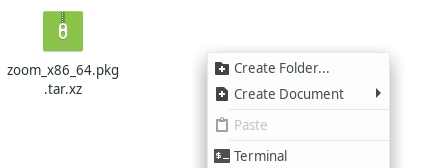
- Type in the following command and press Enter to run it.
sudo pacman -U zoom_x86_64.pkg.tar.xz
- Enter your admin password and continue the installation when prompted.
Pacman will also download and install the required dependencies
Uninstalling Zoom
If you want to uninstall, run the following command in the terminal. This will also remove all dependencies not required by other installed applications.
sudo pacman -Rs zoom
Logging In
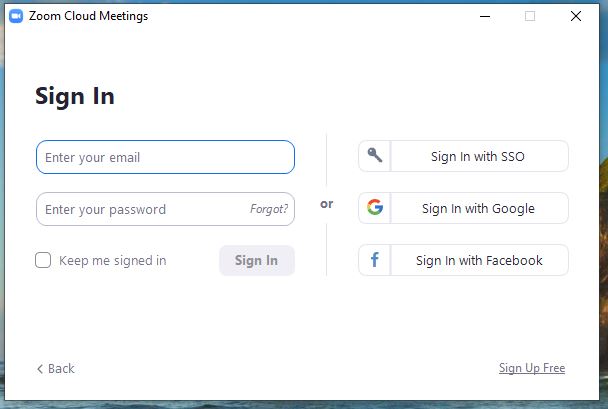
- Open Zoom and Click Sign In
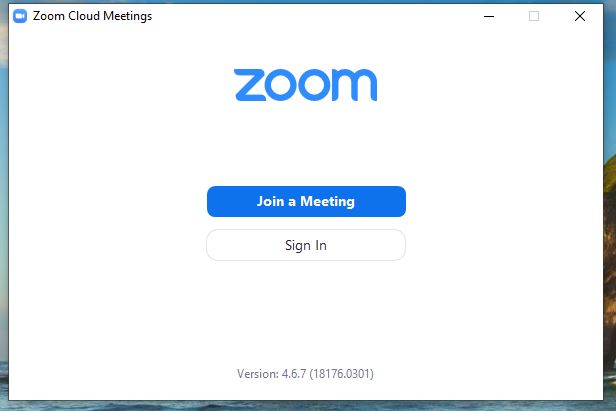
- Select Sign in with SSO
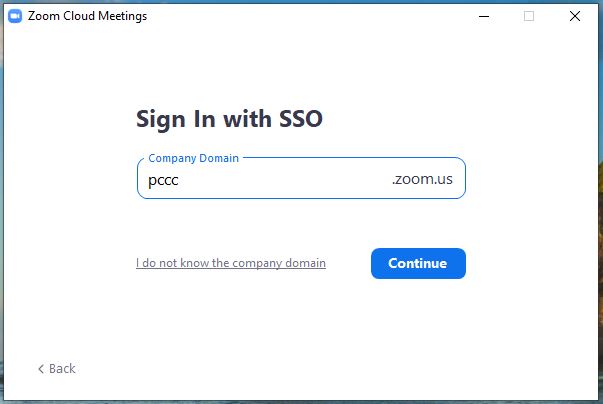
- Type in "pccc" and click Continue
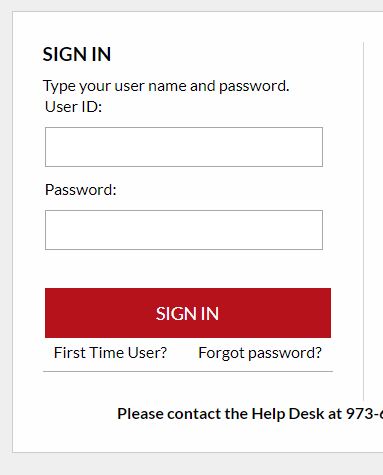
- Type in your PCCC User ID and Password
- A pop up window will appear. Click "Open Zoom"
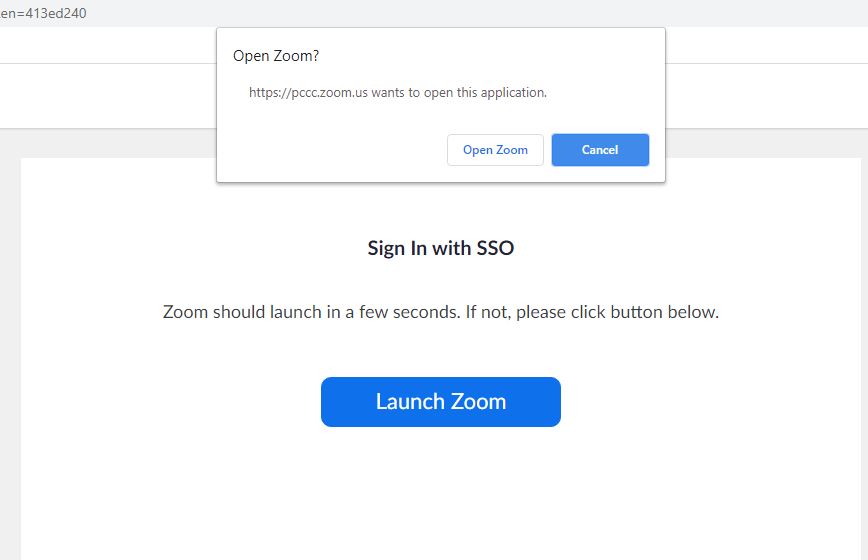
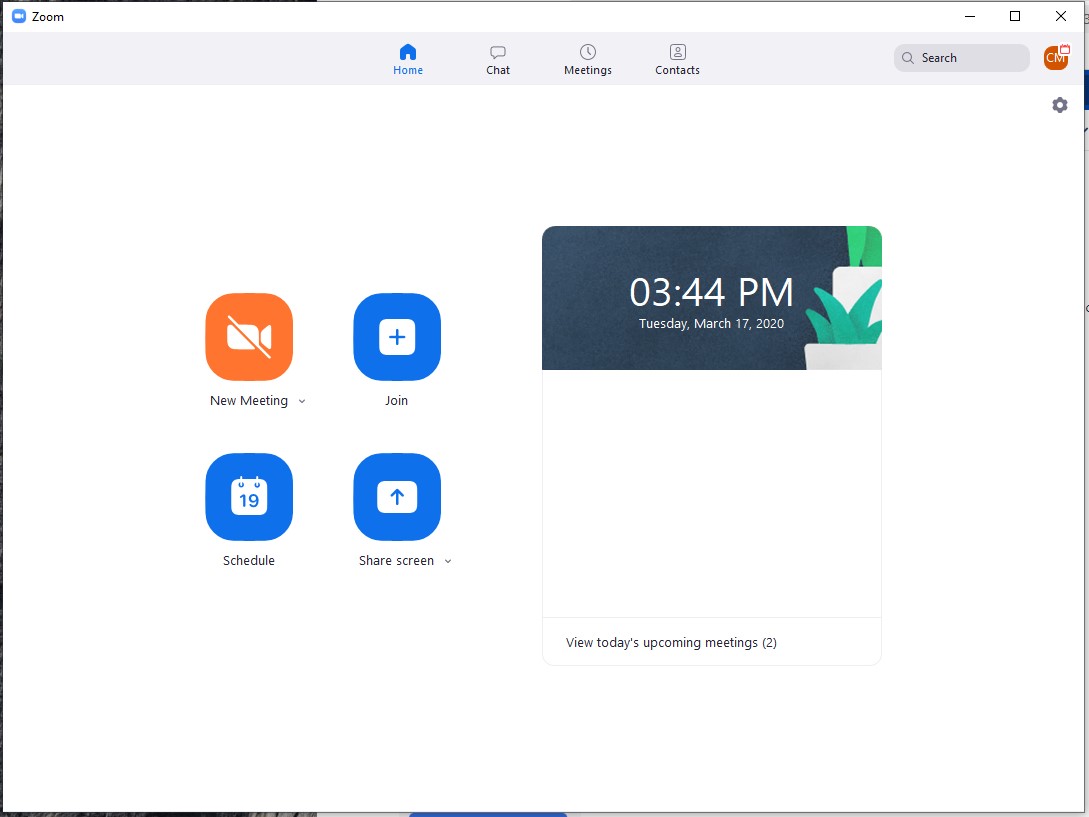
- You are now logged in to the zoom interface
Related articles