Installing Zoom Client & Login (MacOS)
- Christopher Mueller
This article will help you install Zoom and log into the PCCC Zoom System
Zoom and Virtual Desktops
PCCC does NOT recommend using Zoom Videoconferencing inside a Virtual Desktop. Zoom should be run from your laptop, home desktop, tablet or smart phone.
Table of Contents
Pre-Installation
To install Zoom on your Mac computer, you may need change your Security and Privacy settings to allow for apps downloaded from identified developers.
- Permissions to Install
- Click on the Apple Icon at the top left corner of your screen. Choose System Preferences.

- Click on Security & Privacy.
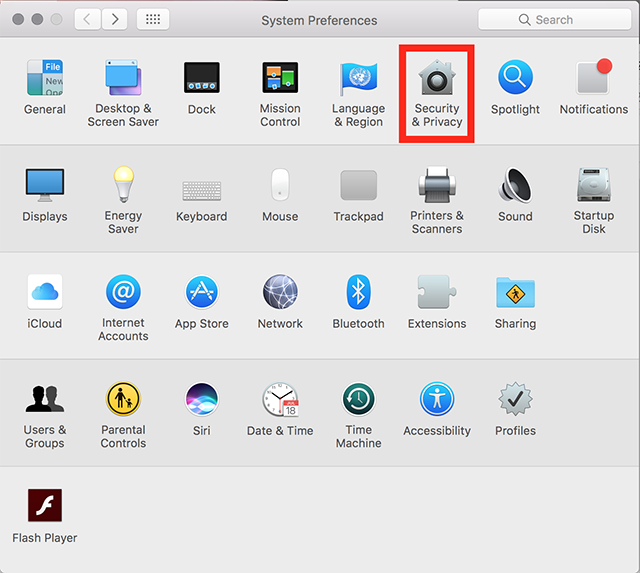
- Click the lock icon at the bottom left to have access to make changes.
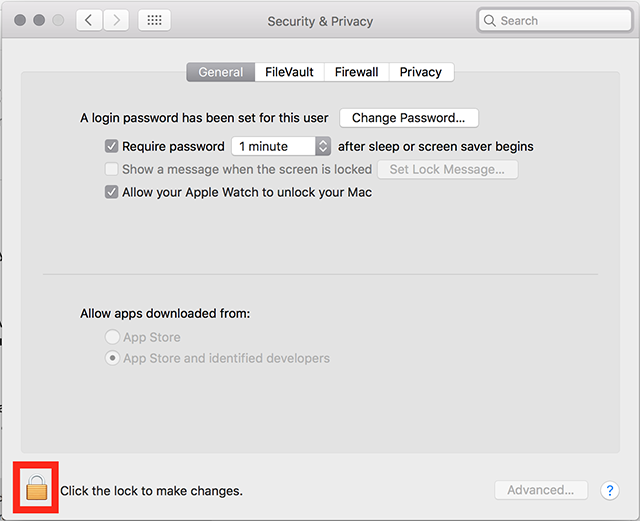
- Enter your computer administrator username and password.
- Change Allow apps downloaded from:, to App Store and identified developers.
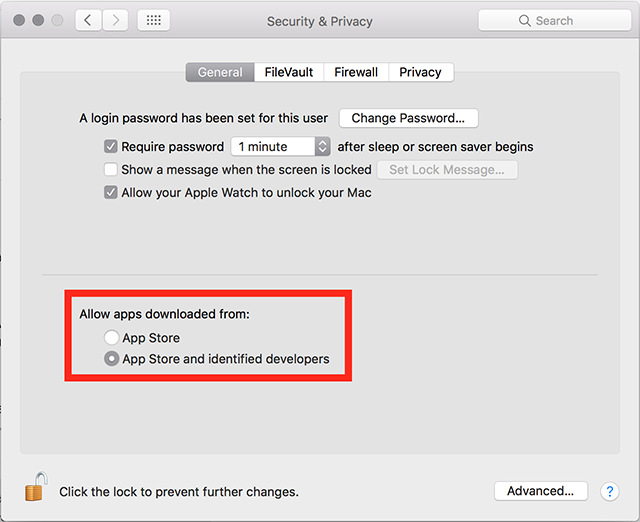
- Note: For Mac High Sierra (10.13.x), you will need to click on Allow too.
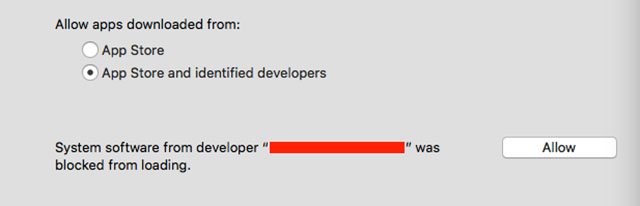
- Click the lock icon again to prevent any further changes.
Installing the Zoom application
- Visit our Download Center.
- Next to Zoom Client for Meetings, click Download.
- Open the downloaded file. It is typically saved to your Downloads folder.
- Follow the prompts to install the application on your computer.
Logging In with your PCCC Credentials
- Open Zoom and Click Sign In

- Select Sign in with SSO
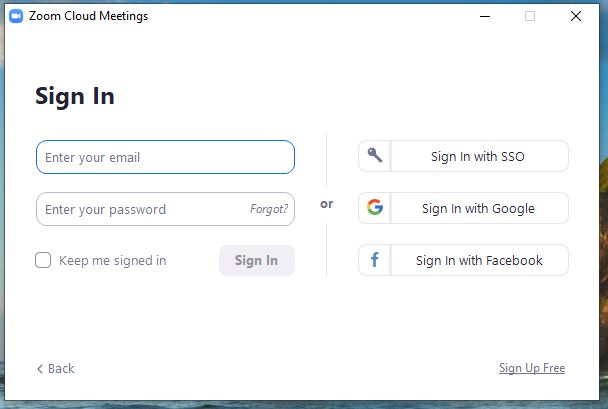
- Type in "pccc" and click Continue
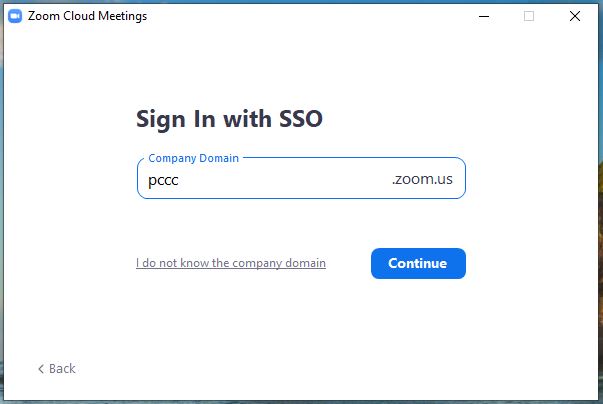
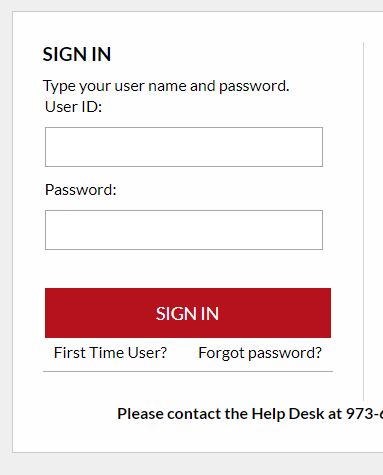
- Type in your PCCC User ID and Password
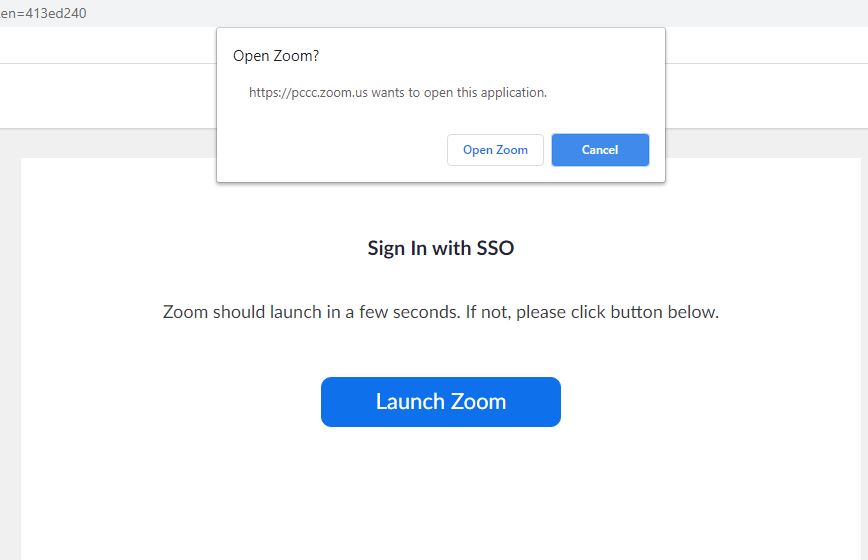
- A pop up window will appear. Click "Open Zoom"
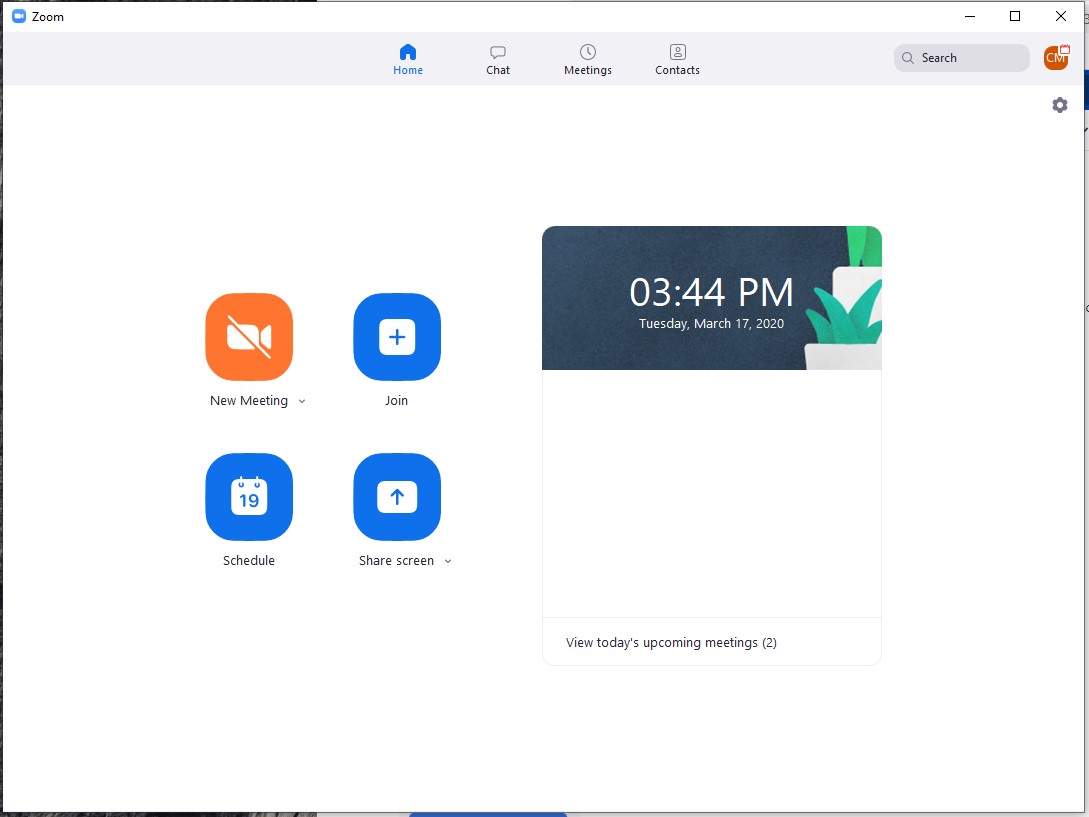
- You are now logged in to the zoom interface
Related articles
This article will help you install Zoom and log into the PCCC Zoom System
Zoom and Virtual Desktops
PCCC does NOT recommend using Zoom Videoconferencing inside a Virtual Desktop. Zoom should be run from your laptop, home desktop, tablet or smart phone.
Table of Contents
Pre-Installation
To install Zoom on your Mac computer, you may need change your Security and Privacy settings to allow for apps downloaded from identified developers.
- Permissions to Install
- Click on the Apple Icon at the top left corner of your screen. Choose System Preferences.
- Click on Security & Privacy.
- Click the lock icon at the bottom left to have access to make changes.
- Enter your computer administrator username and password.
- Change Allow apps downloaded from:, to App Store and identified developers.
- Note: For Mac High Sierra (10.13.x), you will need to click on Allow too.
- Click the lock icon again to prevent any further changes.
Installing the Zoom application
- Visit our Download Center.
- Next to Zoom Client for Meetings, click Download.
- Open the downloaded file. It is typically saved to your Downloads folder.
- Follow the prompts to install the application on your computer.
Logging In
- Open Zoom and Click Sign In
- Select Sign in with SSO
- Type in "pccc" and click Continue
- Type in your PCCC User ID and Password
- A pop up window will appear. Click "Open Zoom"
- You are now logged in to the zoom interface
Related articles